Is your C drive constantly full? Did you upgrade to a larger hard drive, hoping for more storage, only to find a massive section of unallocated space that you can’t use at all? Or maybe you tried Windows Disk Management, saw Extend Volume greyed out, and now you’re stuck worrying about data loss or whether it’s even possible to merge this space with your C drive.
This guide is your complete solution. By reading this, you will understand what an unallocated space is. You will also learn the safest methods to add unallocated space to C drive without reinstalling Windows or losing data. So, access multiple step-by-step solutions, from free built-in tools to the most reliable 1-click method.
What Actually is “Unallocated Space”?
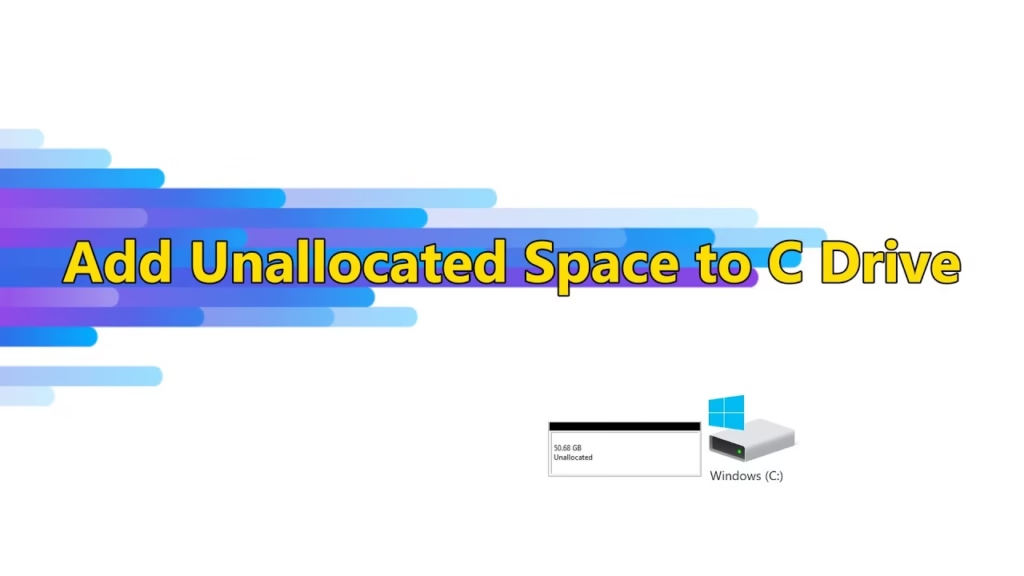
Unallocated space is simply a portion of your hard drive that Windows cannot use because it has no file system. It doesn’t appear in File Explorer; you cannot store files on it, and it remains completely inactive until you assign or merge it with a partition.
Imagine your hard drive as a long freight train. Your C drive is the first cargo car behind the engine, carrying your operating system and essential programs. An unallocated space is an empty cargo car parked at the very end, making it useful but disconnected.
Adding unallocated space to C drive is like moving that empty car forward and coupling it to the C drive car to expand your main storage.
Why Does Unallocated Space Occur? (4 Common Reasons)
There could be multiple reasons why unallocated space occurs on your computer, and below are the most common 4:
1. New or Cloned Drives
When you clone a smaller drive to a bigger one, the cloning software copies everything as it is. This means your original C drive layout is duplicated at the front, while the extra new space ends up at the back as unallocated space.
It’s like moving from a 30-square-meter apartment to a 60-square-meter house but placing all your old furniture in the same layout. All the extra rooms remain empty, which will be your unallocated space.
2. Deleted or Modified Partitions
Deleting a D drive or any other partition instantly converts its former territory into unallocated space, like clearing a lot of land but not building anything on it yet.
3. Shrinking Existing Partitions
If you shrink a partition (such as the D drive) to free up space, Windows labels that new free region as unallocated until you assign or merge it.
4. Other Unexpected Causes
There are some other causes behind it as well, including:
· Outdated or incompatible disk drivers
· Power failure during disk operations
· Virus or malware interference
· File system errors or bad sectors
· Accidentally removing partitions
· Physical damage to the hard disk
How to Add Unallocated Space to C Drive?
If you cannot add unallocated space to C drive, here are the 2 most effective methods that you can try:
Method 1: Using Windows Disk Management
This is the simplest built-in option, only if the unallocated space is directly to the right of the C drive. If it’s not adjacent, the Extend Volume button will be greyed out, making this method impossible.
1. Press “Win + X” and go to “Disk Management”.
2. Right-click “C Drive” and choose “Extend Volume,” then follow the wizard.
Windows cannot move other partitions out of the way. If the D drive or a recovery partition sits between the C drive and the unallocated space, this method won’t work.
Method 2: Using 4DDiG Partition Manager (Recommended)
In most real-world cases, especially after cloning, your unallocated space is located at the far right, separated from the C drive by recovery partitions or the D drive. This makes Windows Disk Management completely useless.
4DDiG Partition Manager provides the safest, most reliable way to add unallocated space to C drive because it can:
· Move partitions
· Merge unallocated space even when it’s not adjacent
· Extend the C drive without data loss
· Simplify complex disk operations into a clean, visual interface
How It Works:
1. Open 4DDiG Partition Manager after downloading and installing it on your PC, then choose “Partition Management” from the left menu. Right-click the “C Drive” and choose the “Extend/Shrink” option.
2. Use the slider interface and drag the left or right borders to extend the C drive or shrink other partitions to free up more space for extending the C drive, and click “OK.”
3. Click “OK” in the pop-up window, then confirm by clicking “Sure”. Just these few clicks, and you will be done extending your C drive and adding unallocated space to it without any worries or complexities. 4DDiG Partition Manager automatically completes everything safely.
Pro Tips
To manage unallocated space effectively, you need to understand how Windows handles partitions behind the scenes. These pro tips explain the hidden rules that impact whether you can add unallocated space to C drive.
Unallocated Space Isn’t “Empty”—It’s Just Unassigned
Unallocated space isn’t broken; it simply lacks a filesystem. Until you add unallocated space to C drive, Windows cannot write data there. Think of it as a room that exists but has no defined purpose; you can’t use it until you assign one.
Why Windows Requires Adjacent Unallocated Space
Disk Management only extends a partition if the unallocated space is immediately next to it. If it’s not, the system greys out the option because of older partition-handling rules. This is why tools like 4DDiG are valuable; they can move partitions to make space adjacent before merging.
Recovery Partitions Are Hidden Trouble-Makers
Many PCs include small recovery partitions (usually 450 MB–1 GB) between the C drive and unallocated space. These invisible blockers prevent users from merging the space. This is normal, and it’s part of how Windows and OEM systems store repair tools.
MBR vs. GPT Matters More Than You Think
Older MBR disks limit the number and behavior of partitions, sometimes preventing movement or extension. GPT disks (used by modern PCs) allow far more flexibility. However, most users don’t need deep technical knowledge as the partition tools handle these details automatically.
Conclusion
Unallocated space is extremely common, especially after cloning drives, shrinking partitions, or upgrading disks. But Windows’ built-in tools often fail because they cannot extend the C drive unless the unallocated space is adjacent. When the Extend Volume option is greyed out, users are forced to look for alternatives.
This guide covered both free methods and the most reliable 1-click option. For risky, non-adjacent, or complex layouts, a safe tool like 4DDiG Partition Manager remains the easiest way to add unallocated space to C drive without data loss. With the right approach, even large blocks of unused space can be merged into your system drive safely and efficiently.
Meta Description:
Struggling to add unallocated space to C drive? Learn safe, fast methods to merge unallocated space, fix expansion limits, and avoid data loss on Windows.