Internet Protocol Television (IPTV) is a process of broadcasting television programming over the internet rather than using conventional programming services, such as cable and satellite. Instead of using a dish or wired connection, IPTV feeds live TV channels and on-demand videos directly over your internet connection.
This makes it very flexible and convenient for modern-day viewers. With IPTV on iPhone, you may watch your favorite channels, movies, and shows anytime and anywhere using just your mobile device. It gives you access to the live broadcasts, catch-up content, and video libraries in one place.
In this guide, you’ll learn about the different apps to use, how to set all of it up step-by-step, how to fix it when something is wrong, and how to safely and responsibly stream.
What You Need Before Using IPTV on iPhone
Before setting up IPTV on your device, make sure you have a few essential things ready. Having the right subscription, app, and internet connection will make the setup process smooth and prevent common streaming issues. Proper preparation also helps ensure better video quality and reliable access to channels.
A Reliable IPTV Subscription or M3U Playlist
Start off with a legal and trustworthy IPTV trial. Most services provide either an M3U playlist URL or Xtream login details, such as server URL, user, and password. These credentials give your app permission to receive channels and on-demand content in a secure manner. Always seek out providers who make the rights of streaming clear.
A Compatible IPTV Player App
Download a compatible IPTV player from the iStore. The app should support M3U playlists or Xtream Codes login. Many players even have additional features such as electronic program guides (EPG), a list of favorites, and AirPlay for better flexibility.
Stable Internet Connection
A strong internet connection is important for hassle-free streaming. Wi-Fi is generally more stable than mobile data. For HD streaming, at least 10Mbps is recommended for the reduction of buffering and interruptions.
Best Apps for IPTV on iPhone & iPad
Choosing the right app is essential for smooth streaming and easy channel management. The App Store offers several IPTV player apps designed specifically for iOS devices. Below are reliable options and what makes them useful for watching IPTV on iPhone and iPad.
IPTV Player
- One of the most popular is IPTVX. It supports the M3U Playlists and Xtream Codes like login, it has total EPG integration for programme schedules, and the interface is nice, modern, and optimized for iPhone and iPad.
- GSE Smart IPTV supports several playlist formats, parental controls, and AirPlay to stream to a smart TV.
- iPlayTV has a reputation for a simple layout, quick loading, and high EPG integration.
- VLC for Mobile can also play back M3U files, so it is useful for simple IPTV streaming.
Free vs Paid Apps
Free IPTV apps are usually lossy in playlist support but can contain ads and other restrictions. Some have EPG access or advanced playback controls restricted. Paid versions often remove the ads, enable multiple playlist management, and offer better performance stability.
Premium apps generally have a better user experience, faster app updates, and other additional features such as parental controls or automatic EPG syncing. If you are streaming daily or if you have multiple playlists, the investment in buying a paid version would often be worth it for better performance and added convenience.
How to Set Up IPTV on iPhone (Step-by-Step)
Setting up IPTV on your device is a simple task that only needs a few minutes if you have the right details at your disposal. With a trusted provider such as Victor IPTV, you get easy login details and stable servers built for smooth streaming. Follow the steps given below to begin watching live TV and on-demand content on your iPhone or iPad.
Step 1 – Download an IPTV App
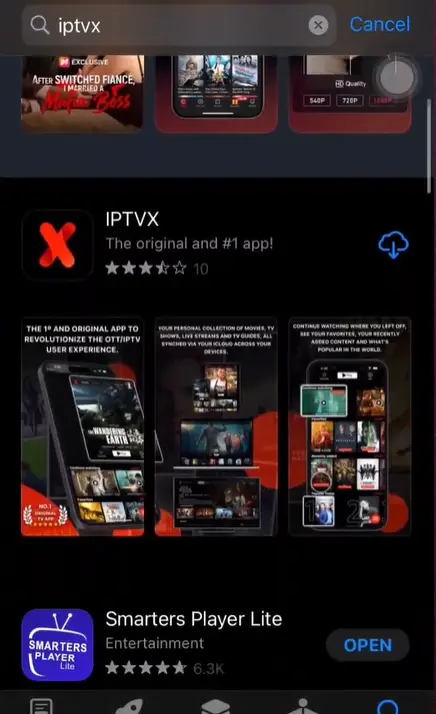
Go to the App Store and install any compatible IPTV player like IPTVX or GSE Smart IPTV. These apps have support for M3U playlist and Xtream Codes login, as these login methods are often offered by Victor IPTV.
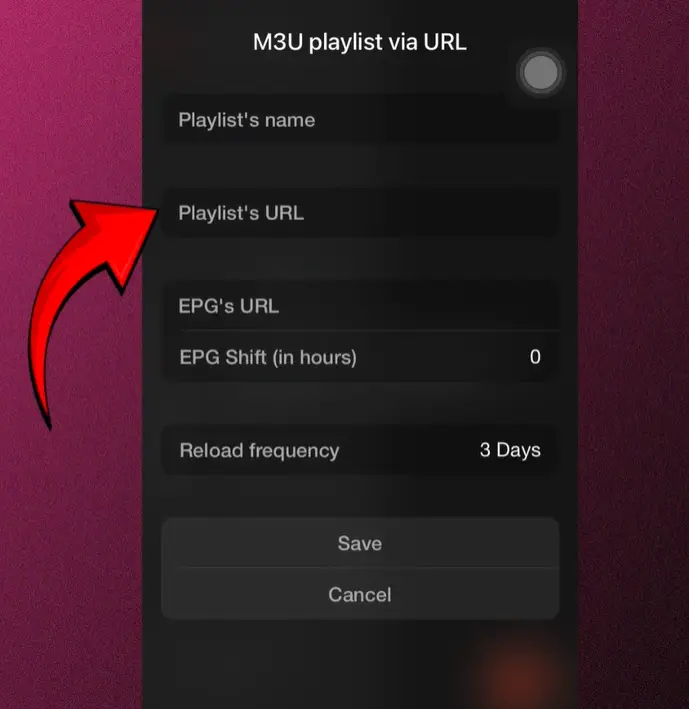
Step 2 – Add M3U URL
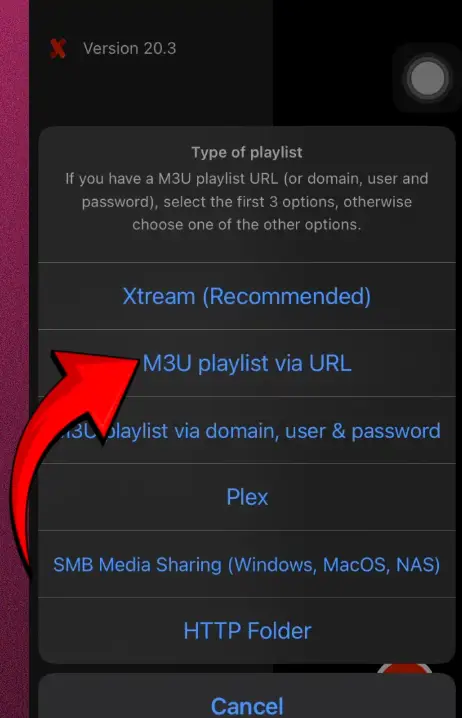
Try the IPTV app that you use and choose Add Playlist or Load via URL. Paste the M3U link as it is provided in your subscription email or dashboard. Make sure that there are no extra spaces before saving. Once you have tapped on either Add or Save, this app will start loading the channel list. In no time, live TV categories and video-on-demand sections will be available for streaming on your device.
Step 3 – Login with Xtream Codes
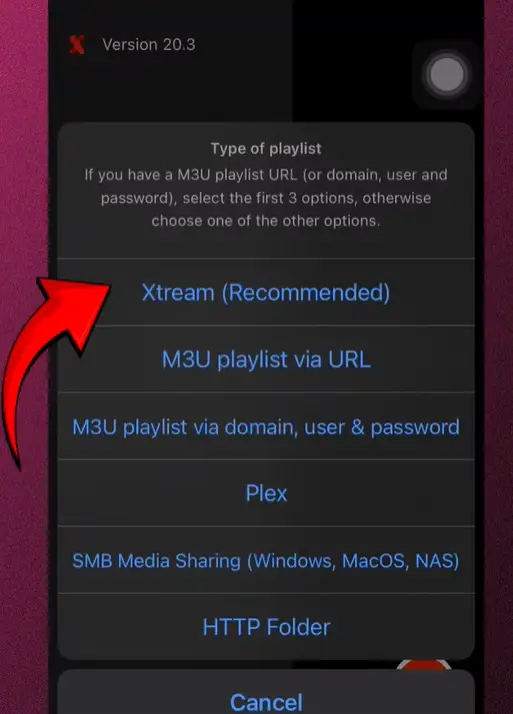
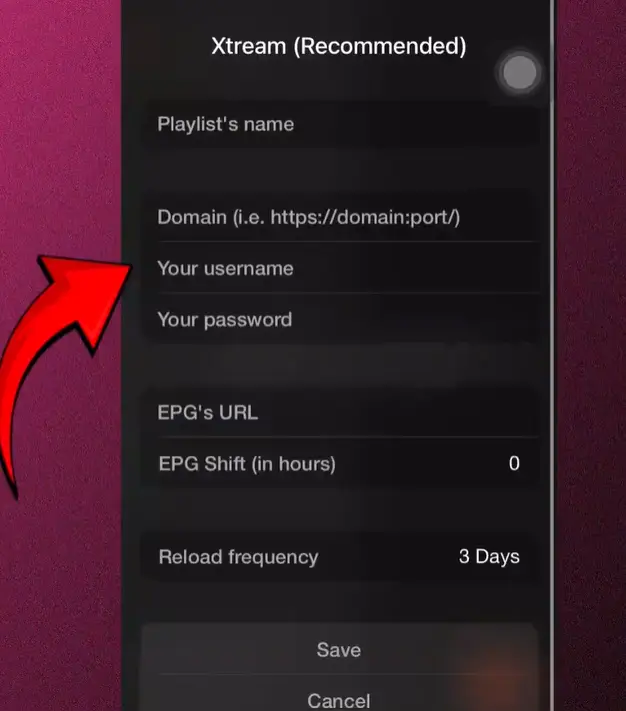
In case your subscription comes with Xtream Codes, then select Login with Xtream Codes API inside the app. Input the server URL, username, and password that are given by Victor IPTV. Look into the details carefully so as not to have login errors. After saving the app, a sync will happen automatically for channels, movies, and series.
Step 4 – Add EPG for TV Guide
To view channel schedules, add the data link EPG provided with your Victor IPTV account. Now, in the EPG settings in your app, paste the guide URL and refresh. The TV guide will now show programme times and descriptions, making browsing easier.
Is IPTV on iPhone Legal & Safe?
IPTV on iPhone is not illegal as long as the service provider has the right to distribute content. Always choose a reputable provider and do not go for the unrealistic or severely cheap offers. To prevent your account from being misused or accessed by unauthorized parties, protect your M3U links and login credentials by keeping them private.
Setting up IPTV on an iPhone is easy if you have a trusted provider, a good App Store player, and a strong internet connection. From enabling an M3U playlist to logging in via Xtream Codes and enabling the TV guide, it only takes a matter of minutes. Always ensure that reliable apps and legal services are used to stream safely. With the right setup, IPTV on iPhone helps you get flexible entertainment in good quality anytime.