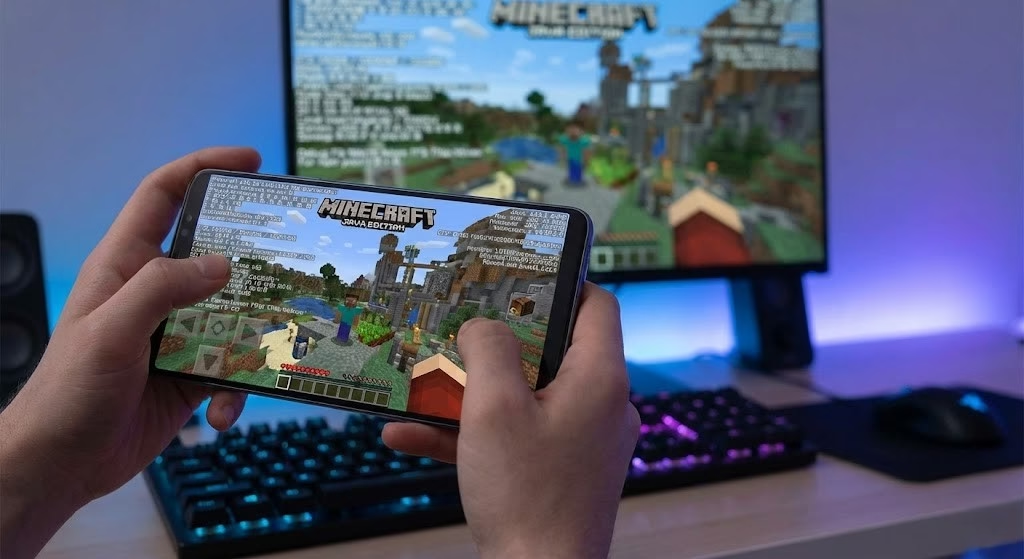
Minecraft runs on multiple platforms, but if you’re looking to expand beyond the official launcher — whether for modded play, better performance on low‑end devices, or classic Java Edition access on Android and iOS — PojavLauncher is one of the most popular alternatives out there.
In this guide, we’ll walk you through what PojavLauncher is, how it works, how to install and use it, troubleshooting tips, advanced settings, and essential FAQs. By the end, you’ll know exactly how to unlock console‑style flexibility and play Minecraft your way. Let’s dive in.
What Is PojavLauncher?
PojavLauncher is an open‑source Minecraft launcher that lets you run Minecraft Java Edition on devices that don’t natively support it — most notably Android and iOS devices. Think of it as a bridge between the Java Edition and platforms that historically haven’t been supported.
Unlike the official launcher, which is limited to Windows, macOS, and Linux, PojavLauncher expands Minecraft’s reach while preserving the Java experience. This means you can play with mods, use custom skins, join servers, and use almost all normal Java features.
Why Use PojavLauncher?
Minecraft fans choose PojavLauncher for a few big reasons:
- Portability: Play Java Edition on phones, tablets, and Chromebooks.
- Customization: Full mod compatibility with Forge and Fabric.
- Free and Open Source: No subscription or license fees.
- Community‑Driven: Regular updates from developers who care.
Whether you’re stuck with a device that can’t run the official launcher, want to explore mod packs, or just want more freedom, PojavLauncher opens doors.
How to Install PojavLauncher
1. Android Installation (Simple Setup)
The easiest way to get PojavLauncher on Android is by downloading it straight from the official site. Head to the official PojavLauncher download source at Pojavlauncher and choose the correct version for your device.
Steps:
- Open a browser on your Android device.
- Visit the official site: https://pojavlauncherdl.com/
- Select the latest stable APK.
- Allow installation from unknown sources (if prompted).
- Install and launch the app.
Once you’ve installed it, you’ll see a sleek interface prompting you to log in with your Minecraft credentials. Use your Mojang or Microsoft account and you’re good to go.
2. Installing PojavLauncher on iOS
Traditionally, iOS hasn’t supported alternative launchers out of the box, but developers have found ways to bring Minecraft Java Edition to Apple devices.
If you’re on iPhone or iPad, here’s how it works: some third‑party tools and test platforms let you sideload or install alternative apps. For an official guide that stays updated with the latest iOS support, check out Pojavlauncher iOS — it walks you through which versions are compatible and how to set them up.
(Pro tip: because Apple’s ecosystem is locked down, your experience may involve TestFlight or other developer provisioning steps.)
Getting Started: Logging In & First Launch
After installing:
- Open PojavLauncher.
- Sign in with your Minecraft account — Mojang email or Microsoft login.
- Choose a version (latest stable or legacy Java).
- Tap Play.
The first launch downloads the necessary game files. It may take a few minutes, especially on slower connections.
Once the game loads, you’ll land in the Minecraft Java Edition main menu — just like on desktop.
Adjusting Settings for Smooth Gameplay
Performance varies across devices, especially on mobile. Here’s how to optimize:
In‑Game Settings
- Graphics: Set to Fast for better performance.
- Render Distance: Lower this if your device lags.
- Particles: Turn off or reduce.
- Clouds & Smooth Lighting: Disable for speed.
PojavLauncher Config Tweaks
The launcher itself also has settings:
- RAM Allocation: Increase only if your device has enough memory.
- Java Arguments: Advanced users can tweak garbage collection flags.
- Version Selection: Older versions often run smoother on low‑end hardware.
Installing Mods & Resource Packs
One of the biggest perks of PojavLauncher is full mod support.
How Mods Work
Mods are additions or changes to Minecraft’s code that add features, items, etc. They work best with mod loaders like Forge or Fabric.
Steps to install a mod:
- Download a compatible Forge or Fabric version from an official mod loader site.
- Place the mod
.jarfile into your Minecraft versions/mods folder (via file manager). - Launch the modded profile in PojavLauncher.
- Enjoy!
Resource packs work similarly — download a pack, place it in the resource pack folder, and activate it in the game’s settings.
Playing Multiplayer & Joining Servers
Whether you’re into survival realms, PvP arenas, or mini‑games, PojavLauncher supports multiplayer:
- Go to Multiplayer in the main menu.
- Tap Add Server.
- Enter the server address (IP) and name.
- Join players around the world.
Most Java Edition servers work seamlessly, as long as your version matches.
Troubleshooting Common Issues
No app is perfect — especially modded launchers. Here’s how to solve the most frequent problems:
Login Errors
- Make sure you’re using correct credentials.
- Update PojavLauncher to the latest build.
- If you used a legacy Mojang account, confirm it’s migrated to Microsoft.
Crashes on Launch
- Reduce allocated RAM.
- Switch to a stable rather than snapshot version.
- Clear launcher cache.
Performance Drops
- Lower in‑game graphics.
- Turn off background apps.
- Restart the device before launching.
If all else fails, reinstall PojavLauncher fresh.
Safety & Legitimacy — What You Need to Know
There’s always confusion around unofficial launchers: are they safe? The short answer: if you use official downloads and avoid sketchy third‑party mods, it’s legit for Minecraft Java assets you already own.
PojavLauncher doesn’t give you Minecraft for free — it simply uses your valid login to access the game you’ve already purchased.
Avoid:
- Pirated game files
- Unverified mod websites
- Suspicious installers
Stick to trusted sources and you’ll stay secure.
Comparing PojavLauncher with Other Launchers
There’s a few ways to play Minecraft outside the official launcher:
- Official Minecraft Launcher: Best support and updates, but limited to desktops.
- Bedrock Edition (Mobile/Console): Cross‑play across platforms, but restricted in mods and Java‑style gameplay.
- PojavLauncher: Best for Java features on non‑desktop devices.
So if mods, custom servers, or Java‑exclusive features are your jam, PojavLauncher wins hands down.
Tips from the Community (Pro Moves)
Seasoned users swear by these upgrades:
- Use a controller when playing on mobile for better control.
- Install a performance pack to reduce lag.
- Back up your worlds regularly.
- Use OptiFine with compatible versions for smoother graphics.
Little tweaks like these make your experience way better.
Conclusion
PojavLauncher is an excellent solution for Minecraft fans who want the full Java Edition experience on mobile devices. Whether you’re playing on Android or iOS, it offers mod support, multiplayer access, and flexibility that the official launcher doesn’t provide. With a little setup and optimization, you can enjoy smooth gameplay, explore custom mods, and join servers just like on a desktop.
Getting started is easier than you think — simply download the launcher from the official source, log in with your Minecraft account, and start exploring. Don’t forget to tweak settings for performance, install your favorite mods, and backup your worlds regularly. Dive in today and elevate your Minecraft experience to a whole new level!
Frequently Asked Questions (FAQs)
PojavLauncher runs on most Android smartphones, tablets, some Chromebooks, and — with special sideloading methods — iOS devices. Performance depends on your device’s hardware.
Yes, you can through local login. But you must have a legitimate Minecraft account (Mojang or Microsoft) to log in.
Yes! It fully supports Java Edition mods using Forge or Fabric. You can install mods, resource packs, and custom skins just like on the desktop version.
When downloaded from the official site and used with your own account, PojavLauncher is safe. Avoid unverified downloads or pirated mods to stay secure.
Absolutely! You can join Minecraft servers by entering the server IP in multiplayer mode. Make sure all players are using compatible versions for smooth gameplay.
Lower graphics settings, reduce render distance, disable particles and smooth lighting, allocate RAM carefully, and close background apps to improve performance on mobile devices.
For iOS devices, follow the official guide at Pojavlauncherdl.com/pojavlauncher-ios to download and install compatible versions safely.