System clean up Windows is often the first thing users try when their computer becomes slow or runs out of storage. If you’re dealing with lag, freezing apps, or constant low disk warnings, you’re not alone.
Many people think deleting a few files is enough to speed up a Windows PC, but that rarely solves the real problem. This guide goes beyond basic cleanup and shows you how to truly optimize your system for long-term performance.
What Does System Clean Up Windows Really Mean?
When people talk about system clean up Windows, they usually mean deleting temporary files or emptying the recycle bin. However, a true clean up Windows system process involves much more than that. It includes removing unnecessary data, optimizing system resources, and improving how storage is managed.
Basic cleanup focuses on deleting visible files, such as downloads or temporary data. While this helps free some space, it doesn’t address deeper issues like hidden system files, fragmented storage, or inefficient background processes. That’s why many users notice their PC slows down again shortly after cleaning.
A deeper approach combines file cleanup with system optimization. This means not only removing junk but also improving how your system uses resources like memory, disk space, and startup processes. For example, deleting files might give you a few gigabytes back, but optimizing your system can significantly improve speed and responsiveness.
In simple terms, deleting files is like cleaning your desk, while optimization is like reorganizing your entire workspace. Both are important, but only together can they deliver lasting results.
Where Junk and Storage Issues Come From?
To effectively remove junk files in Windows, you need to understand where they come from. Many users are surprised to learn that clutter builds up automatically over time, even if they don’t actively download large files.
Here are the most common sources of system clutter:
- Temporary files: Created by Windows and apps during normal operations, often left behind after tasks are completed.
- Windows update leftovers: Old update files remain stored after installation, consuming valuable disk space.
- Application cache: Programs store cached data to improve speed, but this can grow excessively over time.
- System logs: Windows continuously records system activity, which can accumulate into large files.
- Hidden large files: Files like old backups or unused system images can take up significant space without being visible.
The reason your storage fills up again quickly is that these processes never stop. Every update, app launch, or browser session generates new data. Without regular maintenance, your system gradually becomes cluttered again, leading to slower performance and reduced storage availability.
Step-by-Step System Clean Up Windows
A proper system clean up Windows routine involves multiple steps. Each step targets a different type of clutter or performance issue, ensuring a complete cleanup process.
Step 1: Run Built-in Disk Cleanup
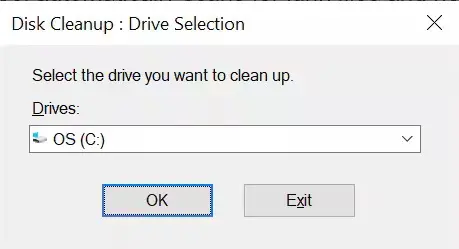
The first step is to use Windows disk cleanup, a built-in tool designed to remove basic unnecessary files. It’s easy to use and helps clear temporary files, system cache, and recycle bin contents.
- Press “Windows + S” and search for “Disk Cleanup”. Select the drive you want to clean and click “OK,” and wait for the scan to complete.
- Check the file types you want to delete and click “OK,” and confirm deletion by clicking “Delete Files.”
This tool is a great starting point, but it only removes surface-level files. For deeper cleaning, additional steps are necessary.
Step 2: Clean Temporary and Hidden Files
To fully free up disk space in Windows, you need to manually remove temporary and hidden files that Disk Cleanup may miss. These files are stored in system folders and can accumulate quickly.
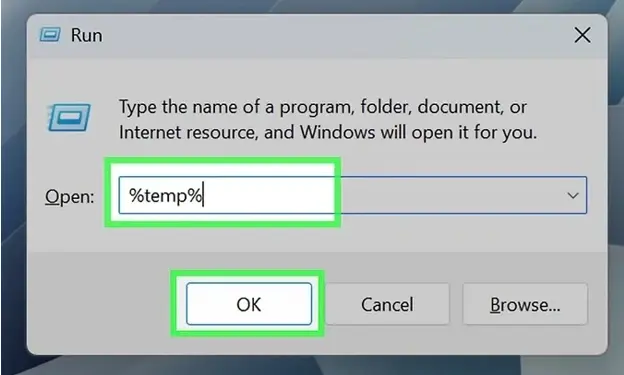
- Repeat the process with “temp” and “prefetch” folders
- Enable hidden files in File Explorer to locate large hidden data
Be cautious when deleting files. Some system files may still be in use, so skip any files that cannot be removed. This step helps recover additional storage and reduces clutter.
Step 3: Remove Unused Programs
Unused applications can consume storage and system resources, slowing down your PC. Removing them is essential to speed up a Windows PC effectively.
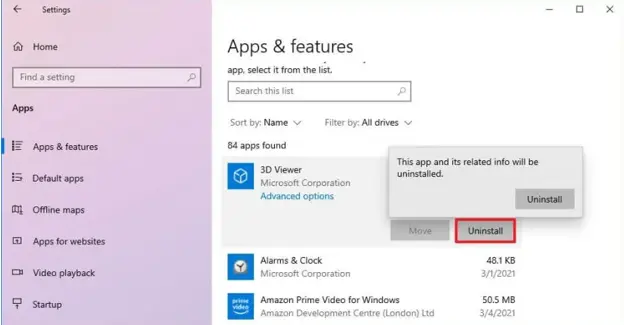
- Review the list of installed programs, then select unused apps and click “Uninstall.”
By removing unnecessary software, you not only free up space but also reduce background processes that impact performance.
Step 4: Optimize Startup and Background Apps
Startup programs and background apps significantly affect system speed. Optimizing them is key to optimizing Windows performance.
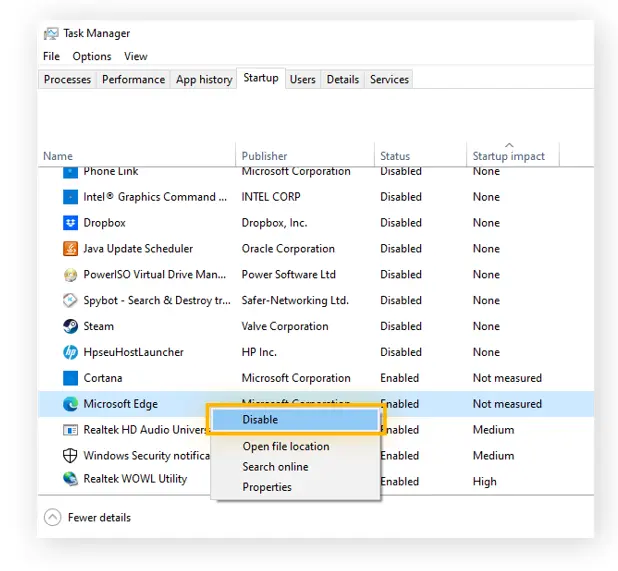
- Review background apps in Settings by going to “Apps & Features”. Click “3-dots” on an app and go to “Advanced Options then choose “Never” in the “Let this app run in the background” option.
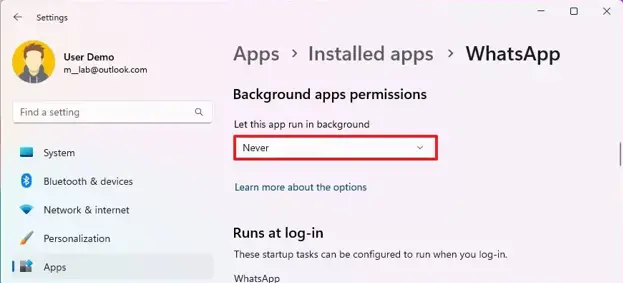
- Repeat this step for all apps to optimize background apps.
Disabling unnecessary startup programs reduces boot time and improves overall responsiveness.
Step 5: Analyze and Optimize Disk Space
Manual cleaning is helpful, but it doesn’t provide a full picture of your storage usage. A disk space analyzer, a Windows tool, helps identify large files and optimize disk layout.
For a deeper system clean up Windows, Windows users rely on tools like 4DDiG Partition Manager to analyze disk usage and optimize partitions. These tools offer visual storage insights, allowing you to see exactly what is taking up space.
They also provide features such as partition resizing, disk optimization, and space reallocation. This makes it easier to manage storage efficiently and avoid future clutter. Instead of guessing which files to delete, you can make informed decisions based on actual data.
Advanced Optimization Beyond Cleaning
Cleaning alone is not enough for long-term performance. Advanced Windows storage management focuses on how your storage is structured and used.
This includes adjusting partitions, reallocating unused space, and ensuring your system drive has enough capacity for smooth operation. For example, if your C drive is full but another partition has free space, resizing partitions can solve the issue without deleting files.
Tools like 4DDiG Partition Manager make this process easier by providing safe and user-friendly options. By combining cleanup with optimization, you create a system that not only runs faster but also stays efficient over time.
Common Mistakes That Slow Your PC Again
Many users unknowingly make mistakes that undo their cleanup efforts. Avoiding these errors is crucial for maintaining performance.
- Only cleaning temporary files: This ignores deeper storage issues that continue to affect performance.
- Ignoring large hidden files: These files often take up the most space but remain unnoticed.
- Using unsafe cleanup tools: Some tools can delete important system files, causing instability.
- Not optimizing startup programs: Even after cleaning, too many startup apps can slow your PC.
Avoid these mistakes to ensure your system stays fast and efficient.
FAQ Section
Q1: What is the best way to do a system clean up Windows?
The best approach combines file cleanup with system optimization. Use built-in tools for basic cleaning and advanced tools for deeper storage management.
Q2: Why does my PC get slow again after cleaning?
Because cleaning only removes temporary files. Hidden files, background apps, and storage inefficiencies continue to affect performance.
Q3: Do I need a cleanup tool?
Yes, especially for deeper optimization. Tools like 4DDiG Partition Manager help analyze disk usage and manage storage more effectively.
Q4: How often should I clean my system?
It’s recommended to perform basic cleanup monthly and deeper optimization every few months to maintain performance.
Conclusion
A proper system clean up Windows process goes beyond deleting files. It involves removing clutter, optimizing performance, and managing storage effectively. By following the steps in this guide, you can significantly improve speed and free up valuable space.
For long-term results, combining manual cleanup with tools like 4DDiG Partition Manager ensures your system remains fast, stable, and efficient over time.
Meta Description:
Struggling with a slow PC or low storage? Learn how to perform a system clean up Windows effectively, remove junk files, free space, and boost performance fast.