How to delete duplicate photos on mac is one of the most common questions Mac users ask when their storage gets full. You may notice your Mac slowing down, apps taking longer to open, or new files failing to save. In many cases, the real issue is not large files it is mac photos duplicates quietly filling your storage. Most people do not even realize how quickly duplicate photos build up. You import the same images again, edit copies, download files twice, or sync from cloud services. The good news is simple. You can remove duplicate photos mac quickly if you follow the right steps. In this guide, you will learn how to find, manage, and delete duplicate images in a safe way.
Part 1: How Duplicate Photos Build Up Without You Noticing
Many users search for how to delete duplicate photos on mac, but they do not understand how these duplicates appear in the first place. Once you know the causes, it becomes easier to control mac photos duplicates and keep your system clean.
Here are the most common reasons:
- Multiple imports: You connect your phone again and import the same photos without checking.
- Edited copies: When you edit a photo, your Mac often saves a new version instead of replacing the old one.
- Downloads: You download the same image more than once from emails, websites, or chat apps.
- Cloud sync issues: Services like iCloud or Google Photos may create copies during syncing.
These small actions add up over time. Your Mac does not warn you about every duplicate. That is why many users feel surprised when storage runs out. If you want to find duplicate photos mac, you must first accept that duplicates grow slowly and silently. Regular checks and simple habits can help you avoid a messy library and reduce the need for heavy cleanup later.
Part 2: The Built-In Way to Find Duplicate Photos on Mac
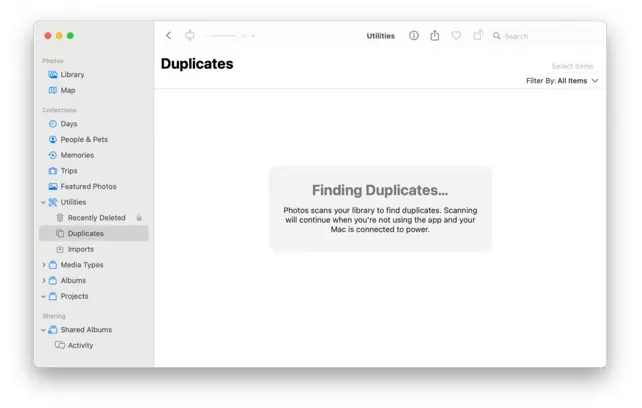
If you want to find duplicate photos mac, Apple already gives you a simple tool inside the Photos app. This built-in feature helps you manage mac photos duplicates without installing extra software.
Follow these steps:
- Open the Photos app on your Mac.
- Look at the sidebar and click on the Duplicates album.
- The system will scan and show similar or identical images.
- You can review each pair and click Merge or delete manually.
This method works well for many users who only store photos inside the Photos app. It helps you clean duplicate photos mac in a safe way because you can review files before deleting them.
However, there are some limits:
- It only works inside the Photos app.
- It does not scan your full system or external folders.
- It may miss some similar-looking files.
If your duplicates exist outside the Photos library, you may still struggle to remove duplicate photos mac completely. In that case, you will need a broader solution that scans your entire device.
Part 3: Why Manual Cleanup Takes Too Much Time
Many people try to delete duplicate images mac manually by checking folders one by one. While this sounds simple, it quickly becomes frustrating and slow.
Here is why manual cleanup is not practical:
- You need to open each folder and compare images.
- Similar photos look almost the same, which makes it hard to decide.
- Large libraries can take hours or even days to review.
- There is always a risk of deleting the wrong file.
When you try to remove duplicate photos mac this way, you spend a lot of time without getting full results. Some duplicates remain hidden in different folders or backup locations.
This process also creates stress. You worry about losing important memories or missing hidden copies. That is why many users look for a smarter method to free up space mac photos without wasting time.
Part 4: The Smart Way to Delete Duplicate Photos Automatically
Using a duplicate photo finder mac is the easiest way to handle large photo libraries without wasting time. Instead of checking files one by one, automated tools scan your whole system and quickly find duplicates. Many users rely on tools like Tenorshare Cleamio to scan their entire Mac and remove duplicate photos quickly and safely. These tools compare images smartly and show results in seconds. You can review files before deleting anything, which keeps your data safe. This method helps you remove duplicate photos mac faster and makes it simple to free up space mac photos without stress or confusion.
Key Features
- Automatic Detection: A duplicate photo finder mac scans your full system and finds exact and similar photos quickly without manual effort.
- Smart Preview Option: You can review each file before deletion, which helps you clean duplicate photos mac without removing important images.
- Safe Removal Process: The tool keeps one original file and removes extra copies, so you can remove duplicate photos mac without risk.
- Full System Scan: It checks Photos app, folders, and backups, helping you find duplicate photos mac in all locations easily.
- Time-Saving Cleanup: You can delete duplicate images mac in minutes instead of spending hours checking files manually.
Steps to Remove Duplicate Photos Automatically on Mac
Step 1: Install and open Tenorshare Cleamio on your Mac. Click the “+” icon to choose a folder, partition, or multiple locations where your photos are stored. After selecting, click “Scan” to let this duplicate photo finder mac start checking for mac photos duplicates across your system.

Step 2: The tool will scan your selected locations and find duplicate photos mac based on smart comparison settings. Once the scan is complete, it will show all duplicate images in one place. You can preview each file to safely clean duplicate photos mac without removing anything important.
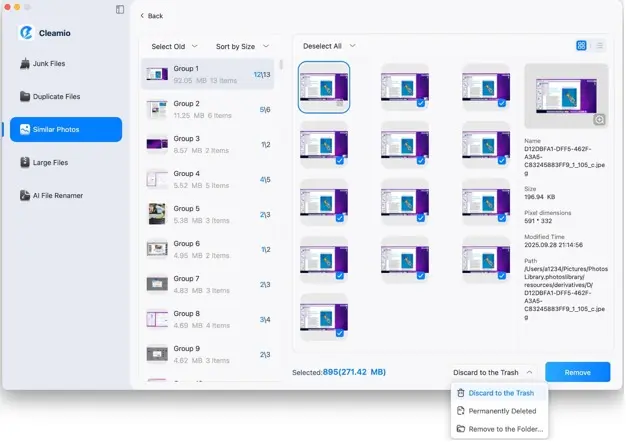
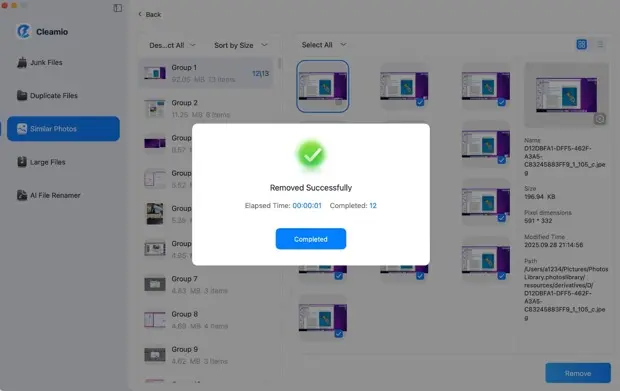
Step 3: Now choose the photos you want to remove. You can quickly select older or newer versions using the built-in options. After reviewing, click “Remove” to delete duplicate images mac safely and free up space mac photos in just a few clicks.
Part 5: How to Safely Delete Duplicate Photos Without Losing Important Files
When you clean duplicate photos mac, safety should always come first. You do not want to lose important memories while trying to remove duplicate photos mac.
Follow these simple tips:
- Preview before deleting: Always check the files before you remove them.
- Keep original versions: Make sure at least one copy stays safe.
- Create a backup: Save important photos to an external drive or cloud storage.
- Use trusted tools: A good duplicate photo finder mac reduces mistakes.
These steps help you delete duplicate images mac without risk. You can also feel confident while doing a full mac photo cleanup.
Part 6: How to Prevent Duplicate Photos in the Future
Once you finish your mac photo cleanup, it is important to stop duplicates from coming back. Prevention saves time and keeps your Mac organized.
Here are simple tips:
- Organize imports: Check before importing photos again.
- Avoid multiple backups: Do not store the same photos in many places.
- Manage downloads: Delete extra copies after downloading files.
- Use one main library: Keep your images in one place.
These habits help you avoid mac photos duplicates and reduce the need to find duplicate photos mac again.
FAQ Section
Q1: What is the easiest way to delete duplicate photos on Mac?
The easiest way to how to delete duplicate photos on mac is by using the Photos app or a duplicate photo finder mac tool. Built-in options work for small libraries, while tools handle larger collections better.
Q2: Does Mac automatically remove duplicate photos?
Mac can find duplicate photos mac inside the Photos app, but it does not remove them automatically. You still need to review and delete or merge them yourself.
Q3: What is the best tool to remove duplicate photos?
Many users choose tools like Tenorshare Cleamio as a mac duplicate photo remover. It helps scan the full system and remove duplicate photos mac safely.
Q4: Will deleting duplicates affect original photos?
No, if you follow safe steps. When you clean duplicate photos mac, always keep one original file. Good tools also protect your main photo during deletion.
Conclusion
In conclusion, learning how to delete duplicate photos on mac helps you take control of your storage and keep your system running smoothly. Duplicate images often build up without notice, but you can manage them with the right steps. You can start with the Photos app for basic cleanup or use a smarter method for better results. Many users prefer tools like Tenorshare Cleamio because they scan the full system and remove duplicates safely. With regular checks and simple habits, you can free up space mac photos, keep your library organized, and avoid the same problem in the future.